
Blog
How to Build an Optimization Application in DB Gene Online Using AMPL Jupyter Notebook
DB Gene Online 4.4.0 introduced seamless integration with JupyterLab, empowering users to live-code and customize their applications. This article demonstrates how to create an end-user application from scratch, integrating the AMPL Facility Location Notebook Example using the DB Gene Online JupyterLab environment.
Step 1: Defining a Data Model from an Excel Document
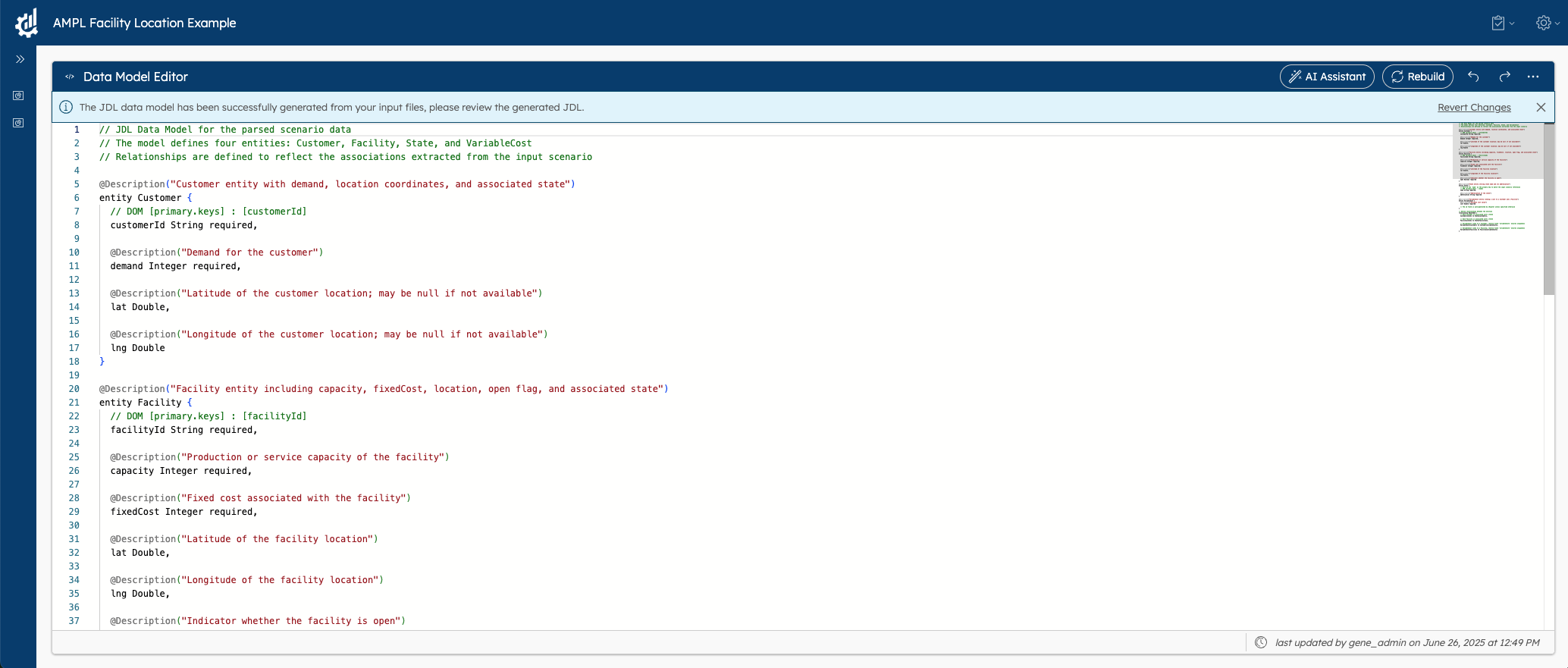
DB Gene Online simplifies data modeling with its AI-powered assistant. Users can automatically generate a JDL data model for their application by uploading document files such as Excel, Word, CSV, or even audio recordings.
To generate the data model, we use the following Excel which corresponds to the AMPL example dataset.
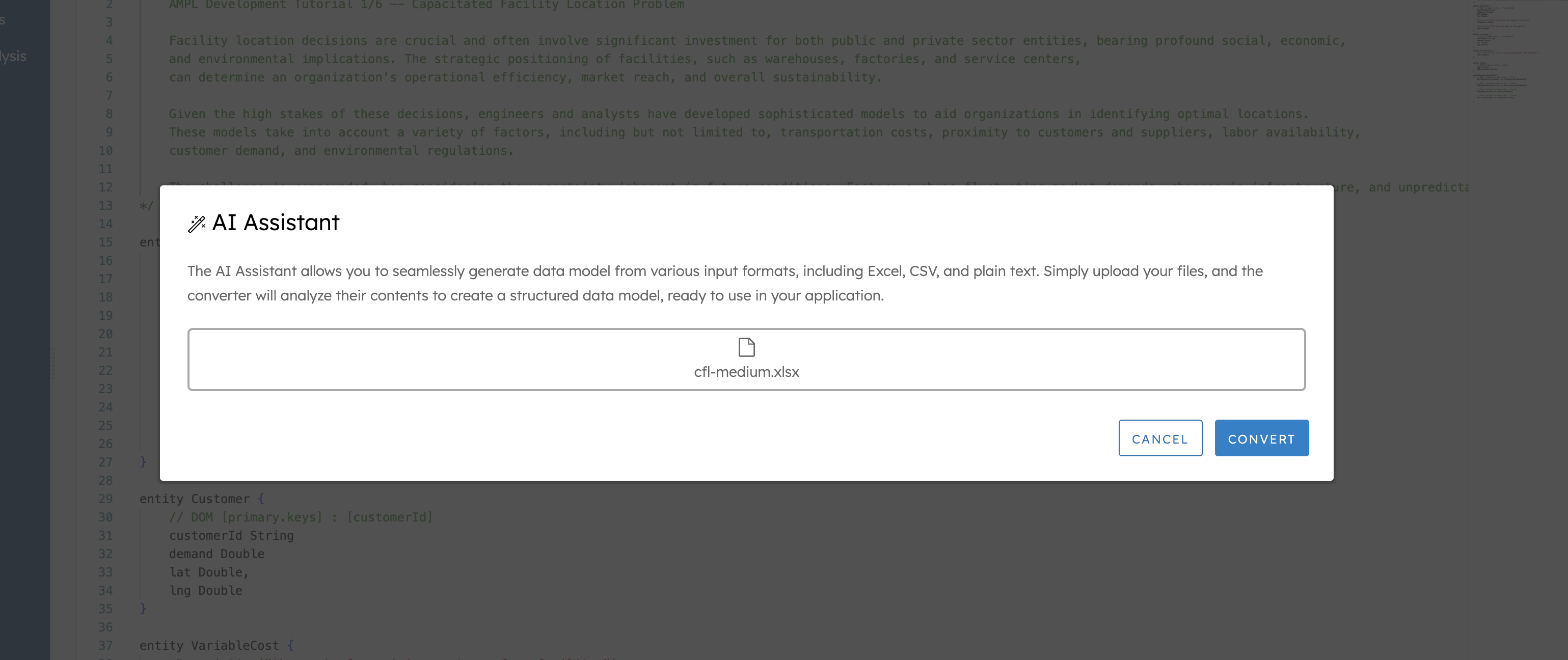
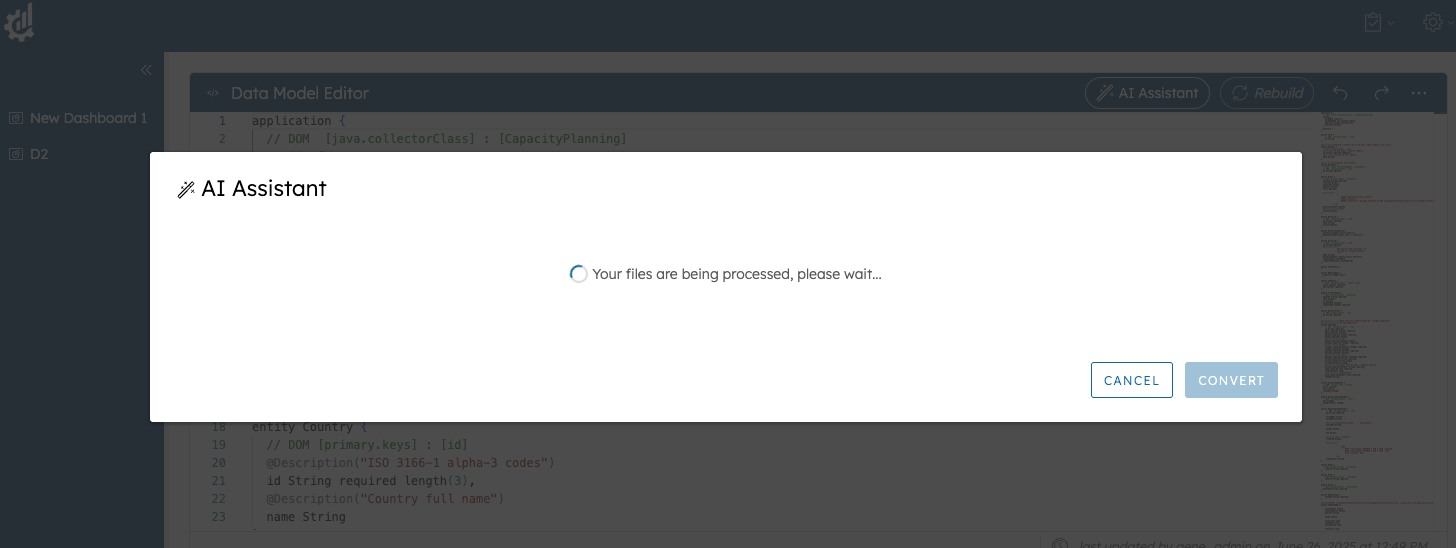
DB Gene Online requires a few seconds to analyse the Excel file and generate the corresponding data model in JDL format.
Step 2: Importing and Validating Data
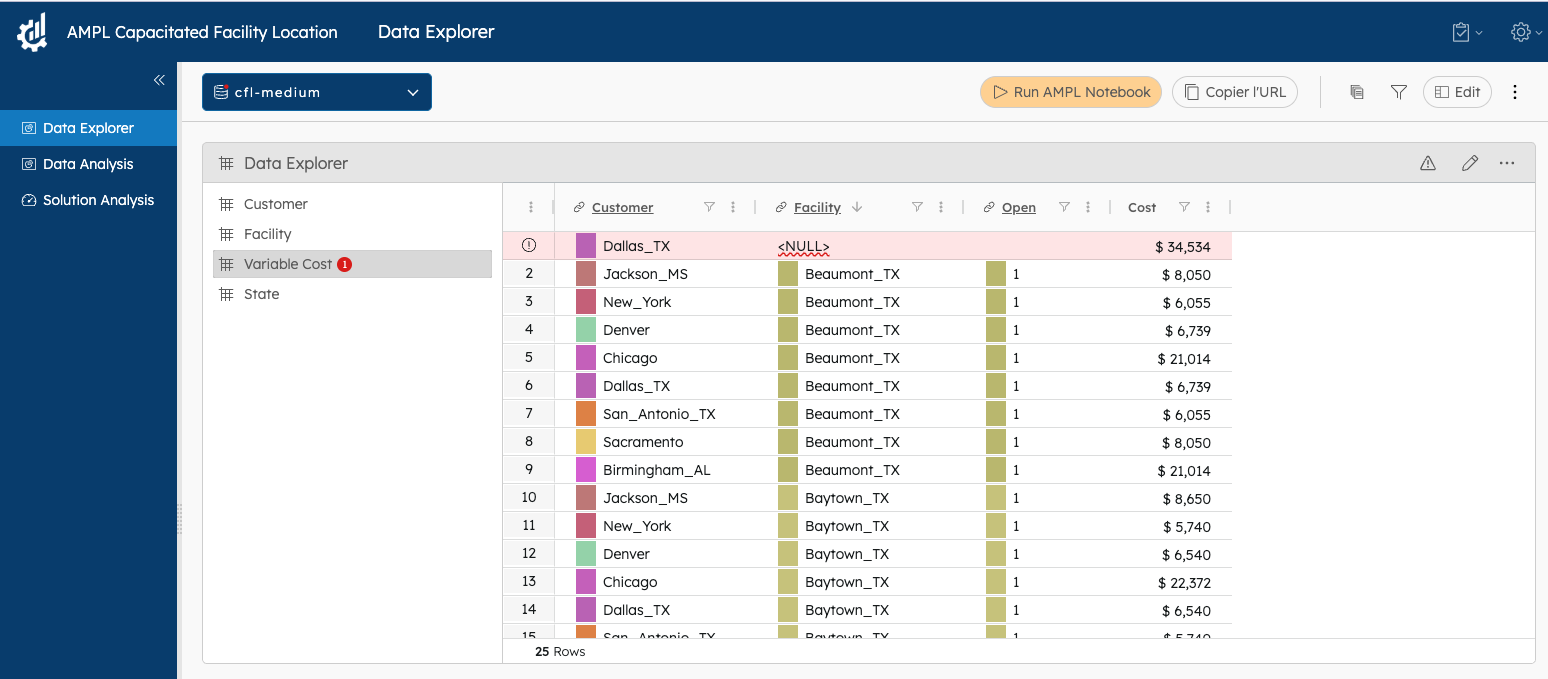
Once the data model is defined in the DB Gene Online application, users can import their Excel files, edit them, and use DB Gene Online’s built-in data checkers to identify and resolve data inconsistencies. In the example below, we just imported the Excel dataset that we also used to generate the model.
The generated model has 4 tables:
- Customer: Contains all the customer information, such as their location and their associated demand.
- Facility: The exhaustive list of facilities with their location and fixed costs.
- Variable Cost: This is a matrix of the variable costs per facility/customer.
- State: The list of states to which both customers and facilities are attached.
Step 3: Writing Code in JupyterLab
To integrate the AMPL Facility Location Notebook, users can access the JupyterLab environment directly from the DB Gene Online interface.
Accessing JupyterLab:
- Navigate to the DB Gene Online Tasks menu.
- Launch the integrated JupyterLab environment.
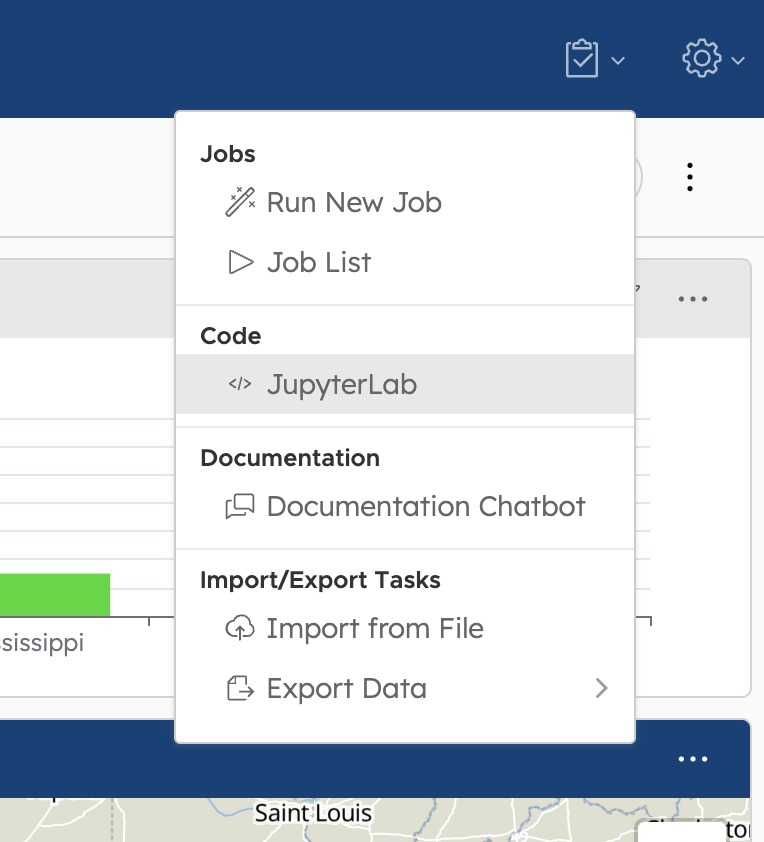
Once in JupyterLab, upload the AMPL Notebook via drag-and-drop to begin coding.
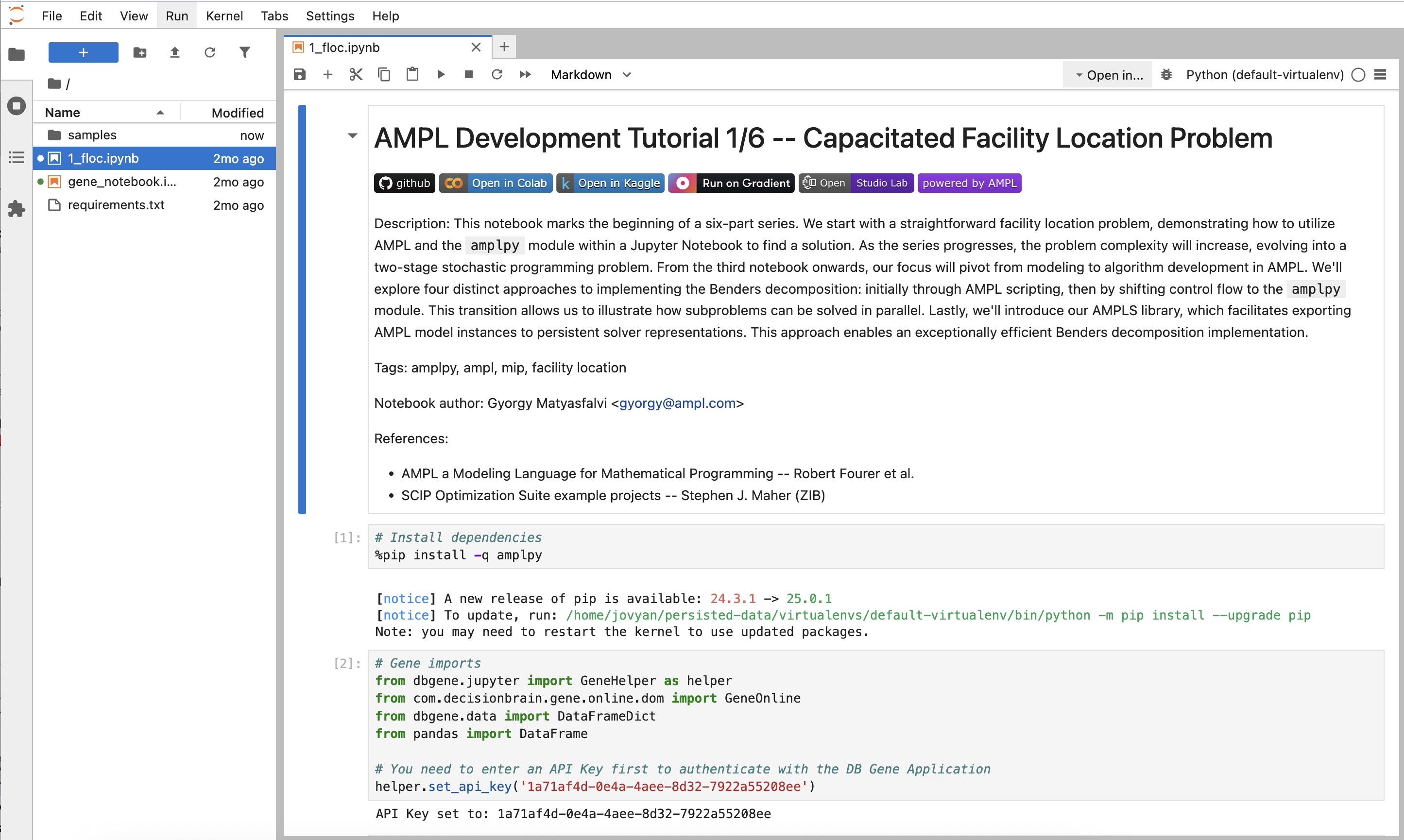
Step 4: Manipulating DB Gene Online Data
DB Gene Online organizes data into scenarios, and users can select at any moment in the DB Gene Online application which scenario(s) to work with. Within JupyterLab, developers can use DB Gene Online APIs to load and save data from scenarios as either DataFrames or Data Object Model (DOM) structures.
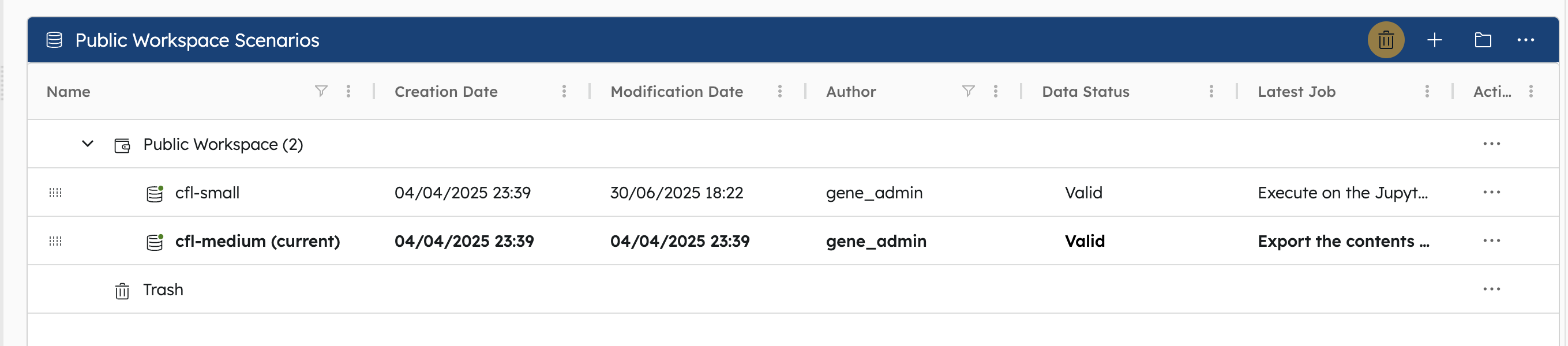
In JupyterLab, the developer has the same ability to select one of the existing scenarios to work with using the Gene APIs.
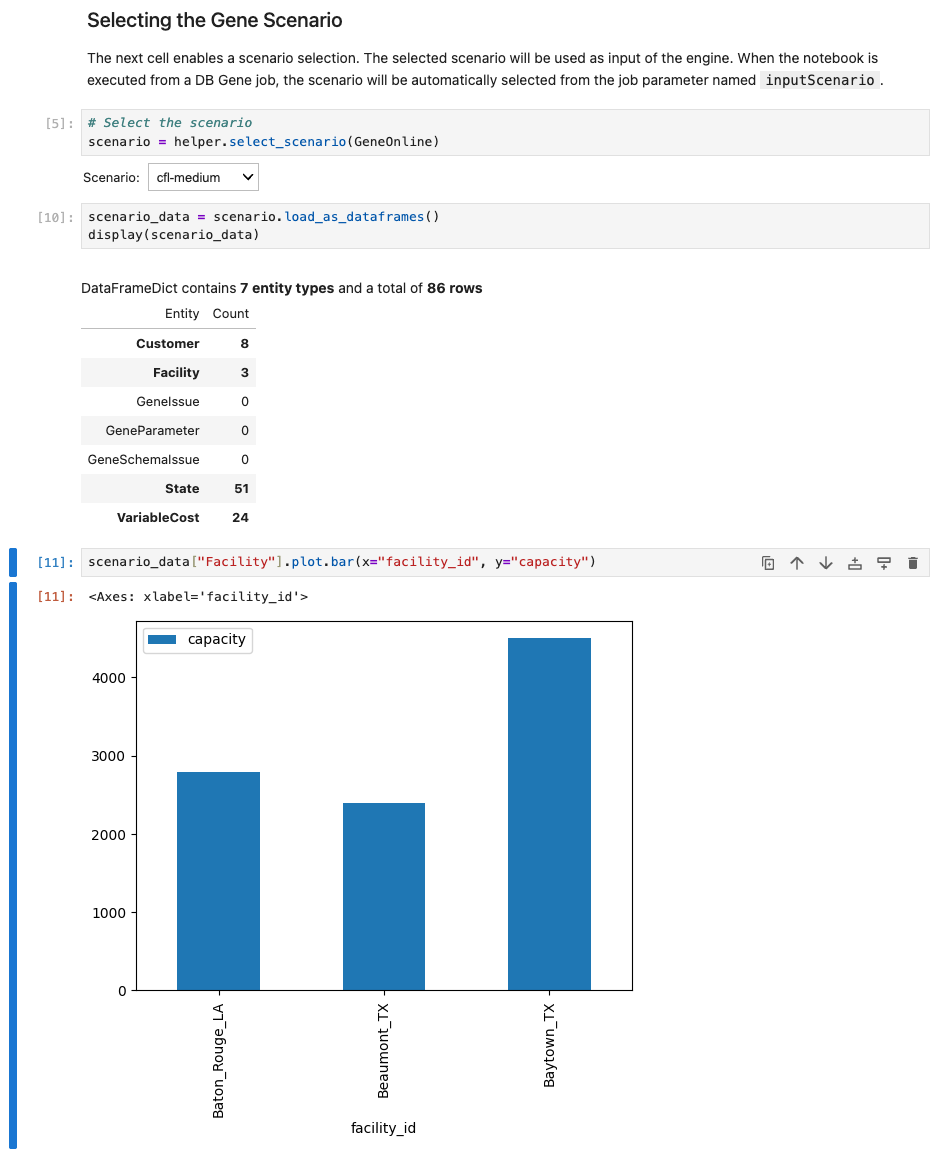
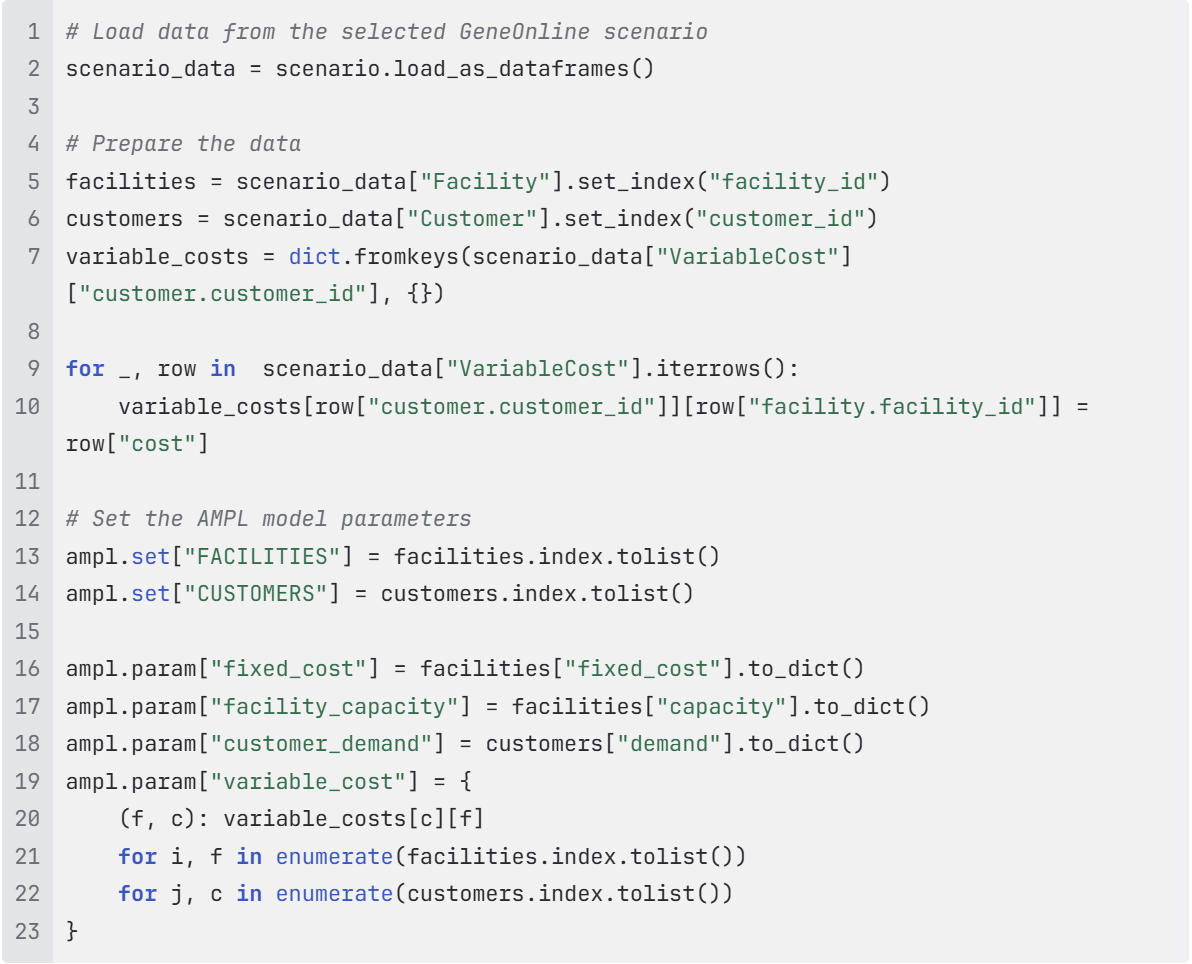
In the AMPL example, the solver takes as input a .dat file. We need to modify the example so that the AMPL solver will take as input data from the DB Gene Online scenario.
AMPL provides different APIs to ingest data from files or directly from Pandas DataFrames. In this demonstration, list and dictionary APIs will be used to pass scenario data to the AMPL model.
Original Dataset Example provided with the AMPL Notebook:
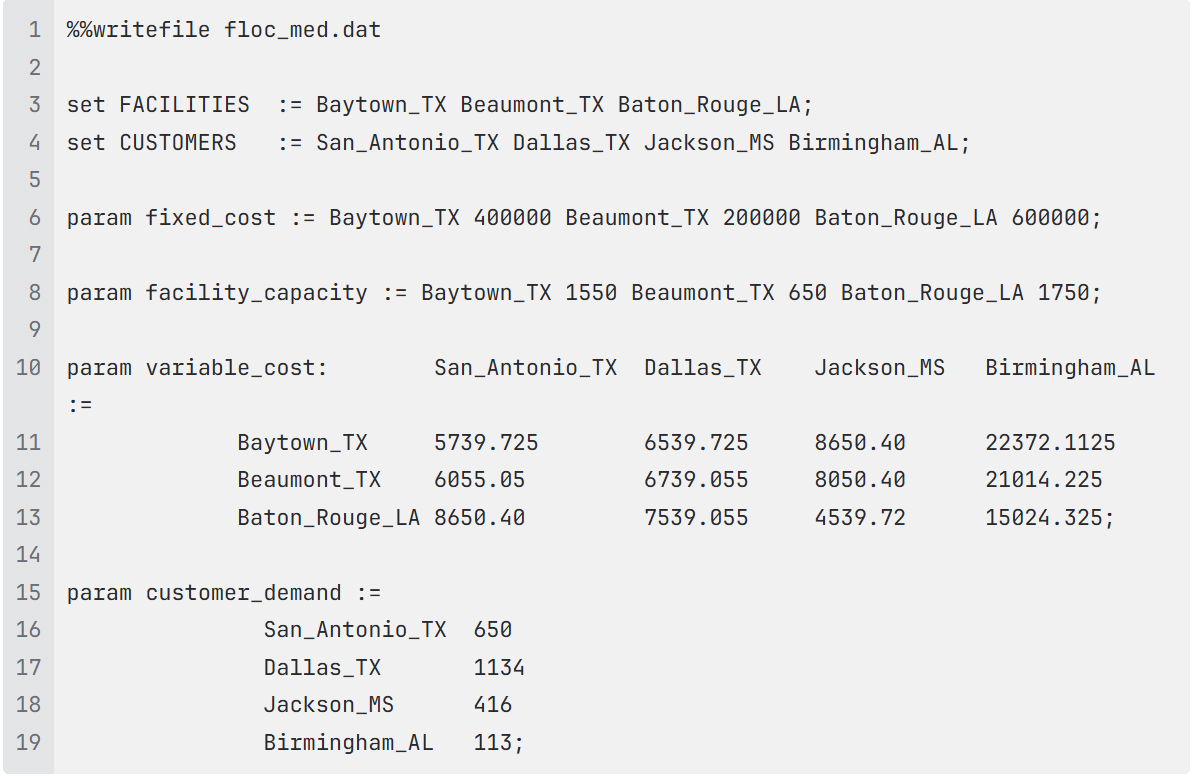
As we can see, the optimisation model needs as input the following data:
- A list of facilities
- A list of customers
- A dictionary of fixed costs per facility
- A dictionary of variable costs per (facility, customer)
- A dictionary of customer demand per customer
This static file is replaced with the dynamic data from the selected DB Gene Online scenario.
Step 5: Running the Optimization and Saving Results
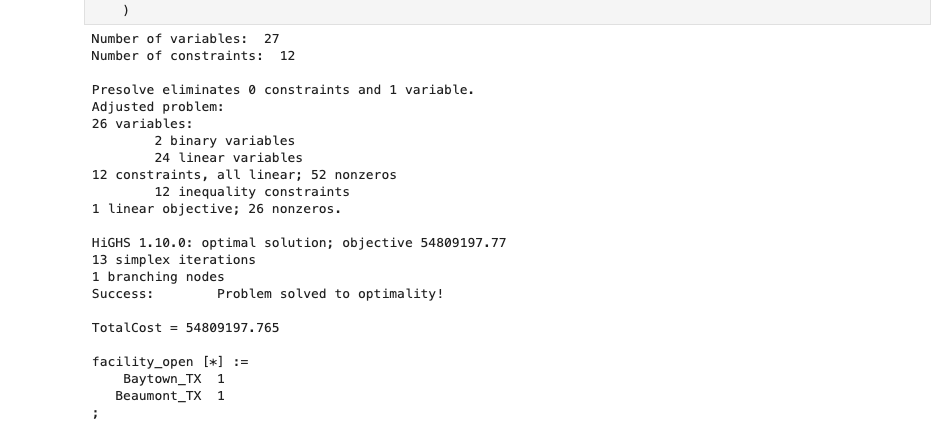
From the JupyterLab AMPL Notebook, we are now able to run the optimisation on the DB Gene Online scenario data and see in the logs the solution found for the problem. The solution to the facility location problem is the list of open facilities among all the facilities. We also obtain the minimal total cost for the found solution.
Saving Results to DB Gene Online
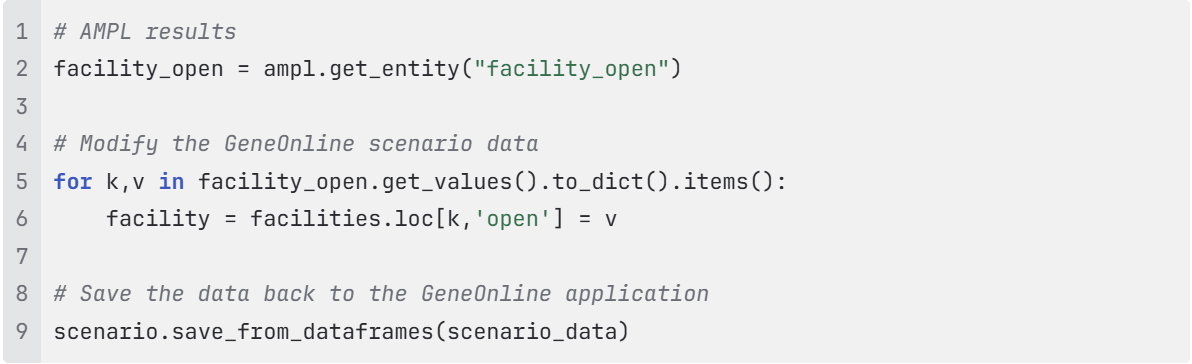
We now want to save this result in the DB Gene Online scenario so we can exploit it from the DB Gene Online application. To do so, we need to update the scenario data with the AMPL results and then save the data. This can be done with the few lines of code below.
Step 6: Exploiting Results with Visualizations
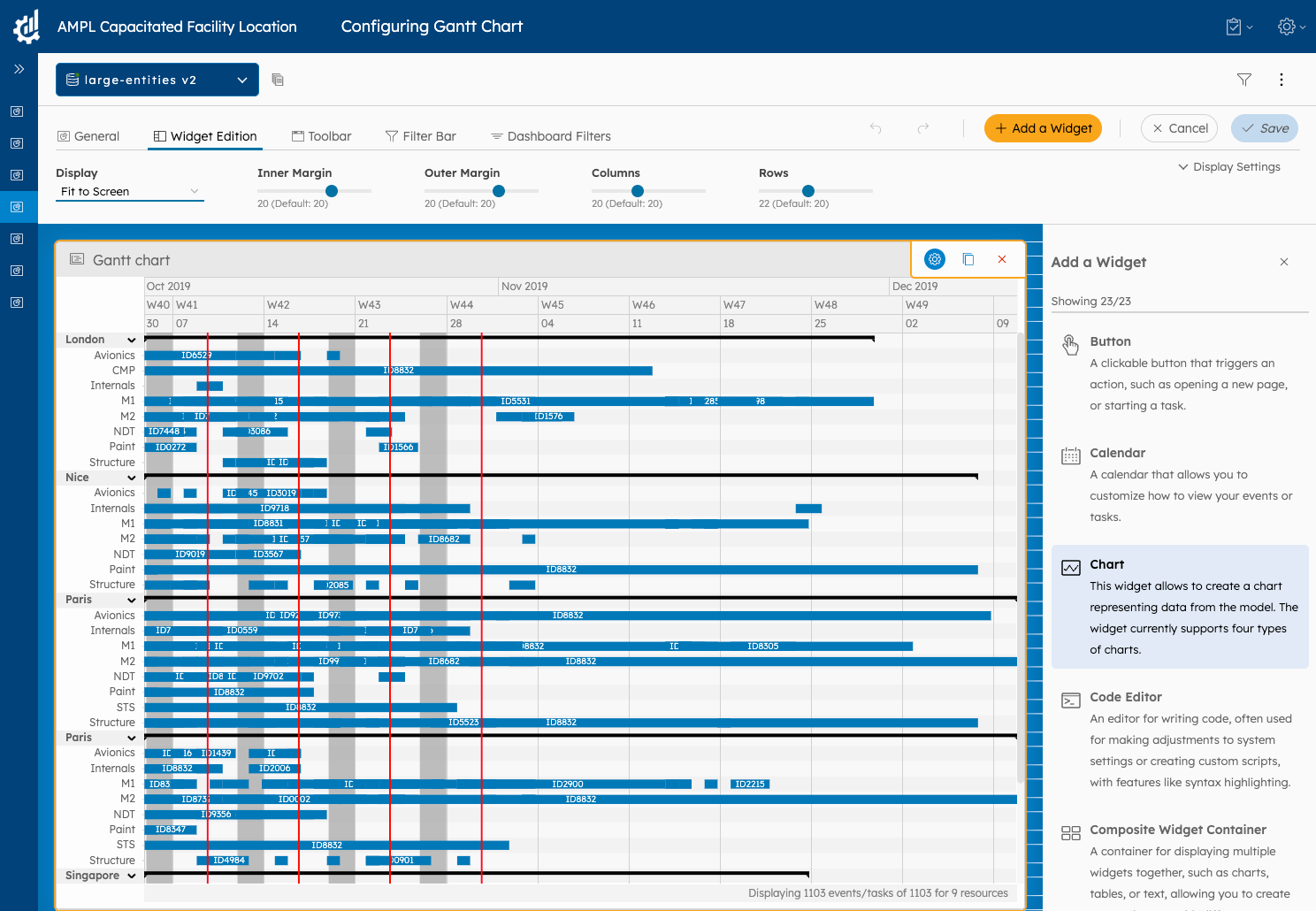
DB Gene Online’s visualization tools enable users to configure dynamic dashboards with minimal effort. These dashboards allow for detailed data exploration, comparison of solutions, and “what-if” analyses by adjusting model parameters.
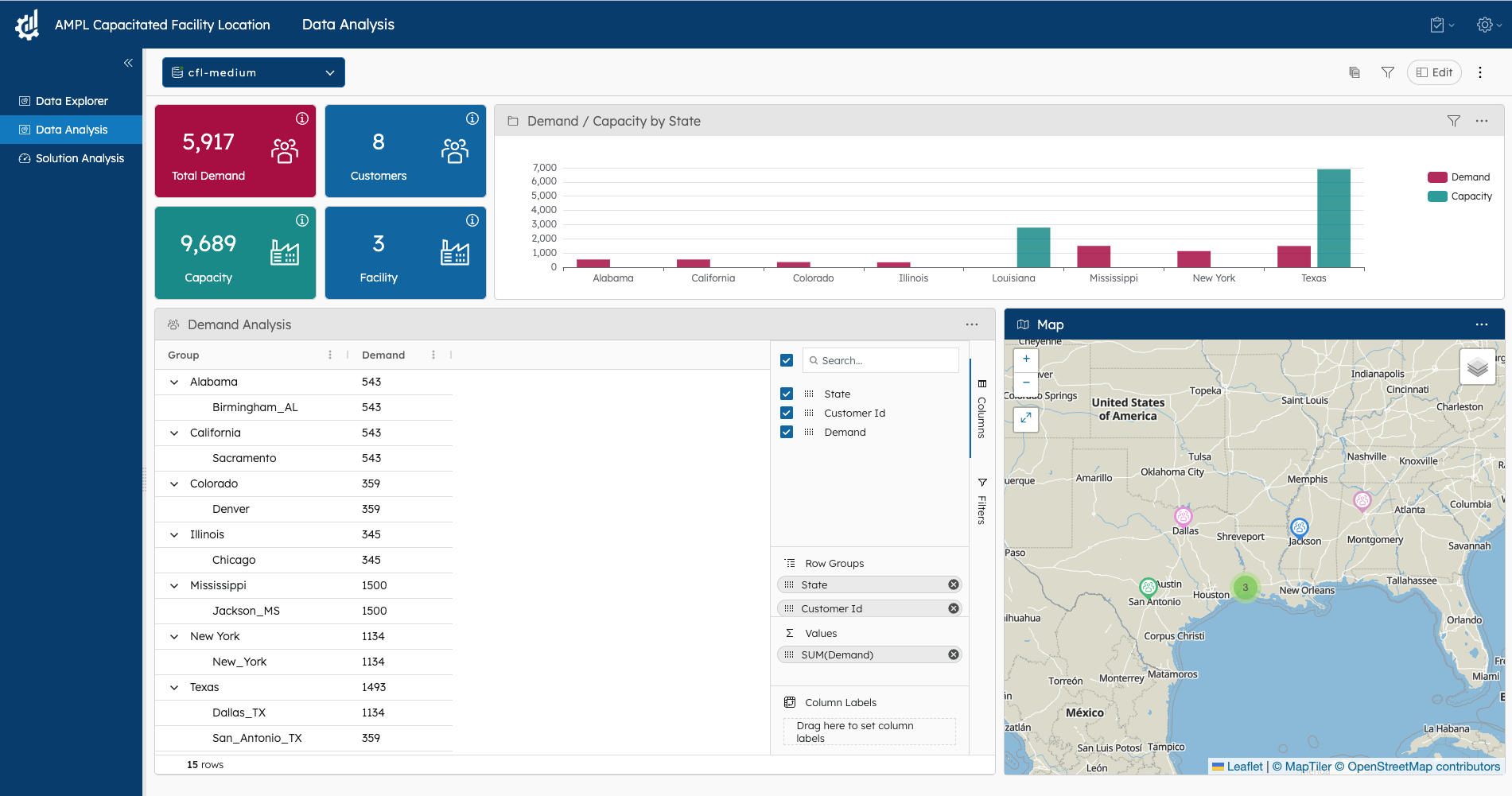
Example Dashboards:
- Input Data Visualization: Features KPIs, charts, pivot tables, and maps on the input data.
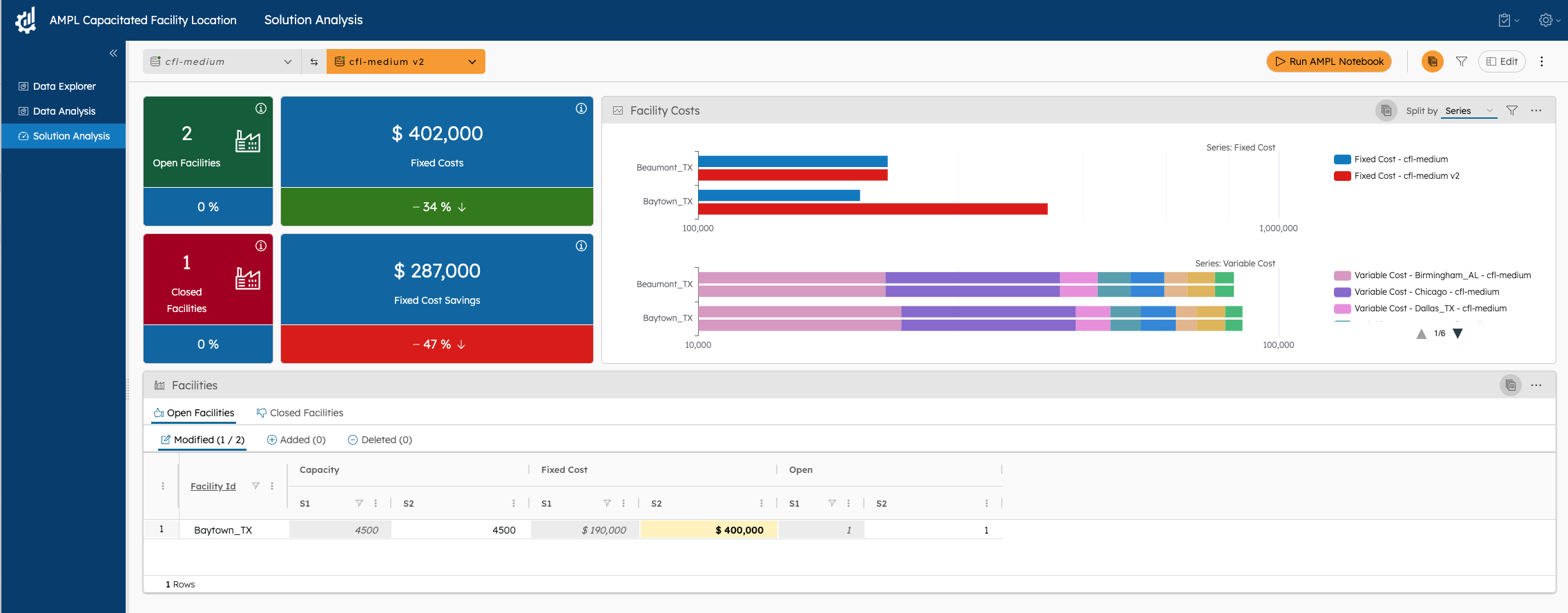
- Comparison of Solutions: Offers insights with KPIs, charts, and multi-tab widgets on the solution’s fixed and variable costs.
Step 7: Running Optimization Directly from DB Gene Online
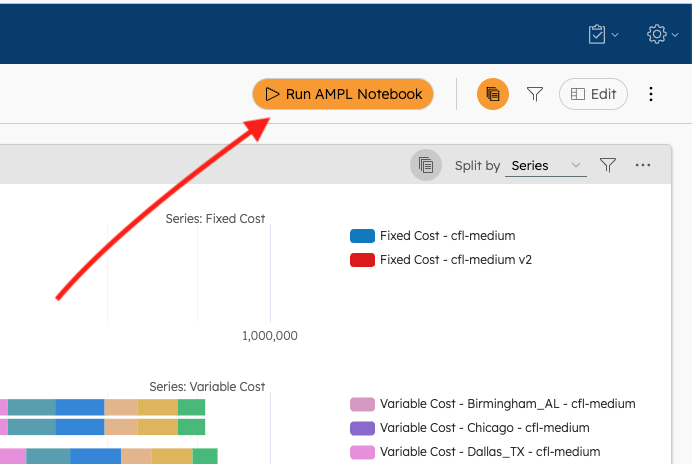
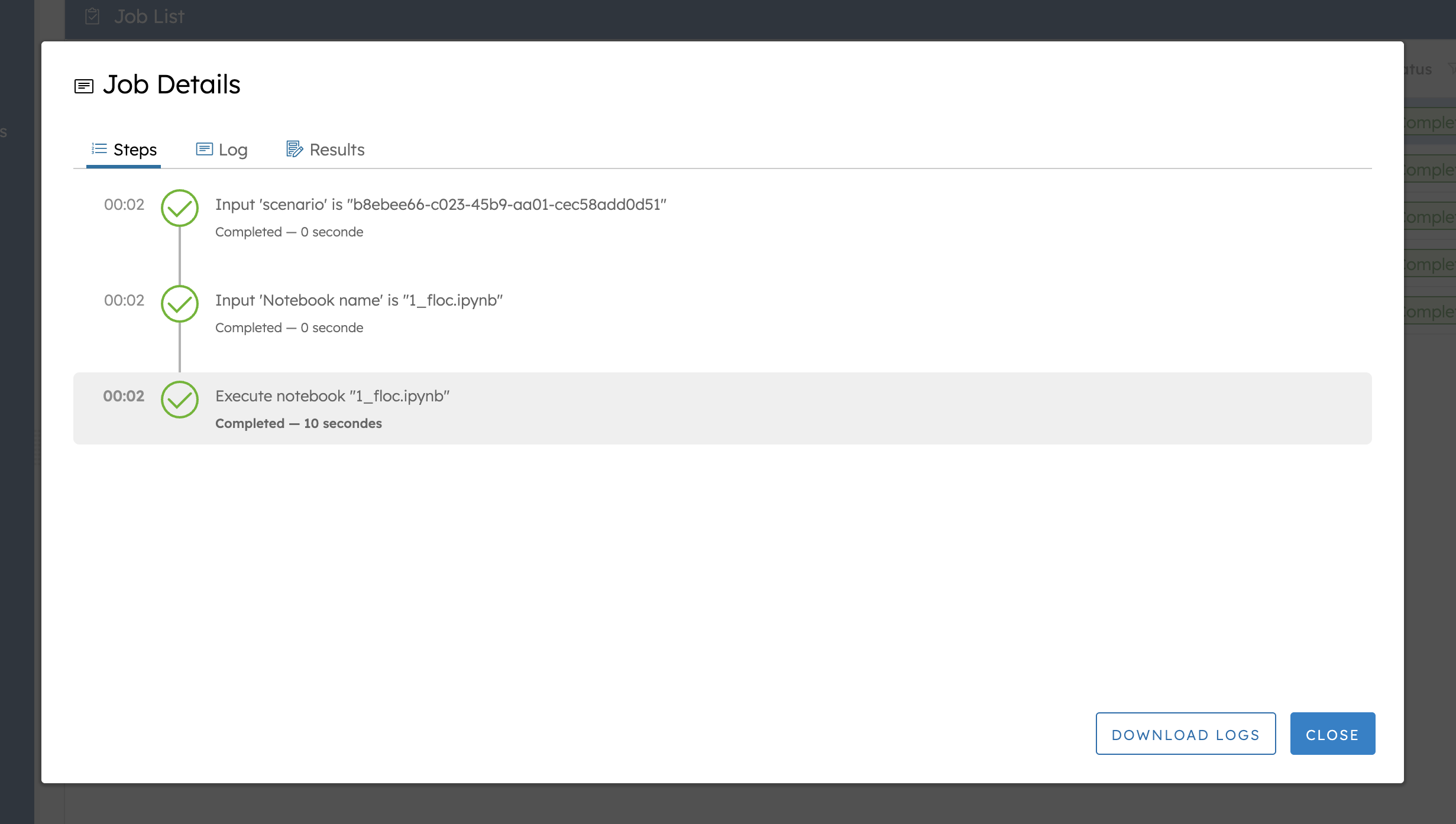
Once the optimization code is running well, end-users can run the Jupyter Notebook directly from the DB Gene Online dashboard.
DB Gene Online customizable buttons allow users to trigger Jupyter Notebook executions seamlessly, leveraging the current scenario as input without leaving the application.
Conclusion
The integration of JupyterLab within DB Gene Online 4.4.0 marks a significant step forward in building robust, end-user–oriented optimization applications. This powerful combination enables developers and data scientists to prototype, implement, and run advanced optimization models—like the AMPL Facility Location example—directly within a unified environment.
With just a few steps, users can go from importing data and defining models to running solvers and visualizing results, all without leaving the DB Gene Online platform.
Thanks to its intuitive interface and drag-and-drop dashboard capabilities, DB Gene Online makes it possible to deliver professional-grade applications—complete with rich data visualizations, interactive elements, and what-if analysis tools—in a matter of minutes. No additional coding or front-end development is required to offer users a fully functional, production-ready experience.
Whether you’re building optimization tools for logistics, finance, manufacturing, or other domains, DB Gene Online with JupyterLab provides everything you need to develop, deploy, and iterate quickly—all while maintaining the level of polish and usability expected from a professional software product.

Patrice Oms
Head of Product Development
About the Author
Patrice joined DecisionBrain in 2015. He has been serving as Senior Software Architect on multiple DecisionBrain projects, then as a Head of Product Development of the company’s platform. He has 15+ years of experience in the design and development of applications, graphical user interfaces, and software engineering. Patrice received a Master’s degree with honors in computer sciences, mathematics and statistics from the University of Montpellier in 2005. You can reach Patrice at: [email protected]
At DecisionBrain, we deliver AI-driven decision-support solutions that empower organizations to achieve operational excellence by enhancing efficiency and competitiveness. Whether you’re facing simple challenges or complex problems, our modular planning and scheduling optimization solutions for manufacturing, supply chain, logistics, workforce, and maintenance are designed to meet your specific needs. Backed by over 400 person-years of expertise in machine learning, operations research, and mathematical optimization, we deliver tailored decision support systems where standard packaged applications fall short. Contact us to discover how we can support your business!
Read also